Signature to vector: a crisp copy of your handwriting
Your scanned signature turns fuzzy when you enlarge it, or drags a white box onto every page. Trace it into clean vector shapes that scale for documents, merch and engraving.
Drop your signature here
Drag and drop an image, or click to choose a file.
Choose imagePNG, JPG, WEBP, BMP, GIF
The converter opens with the recommended settings below. Open the converter without a file
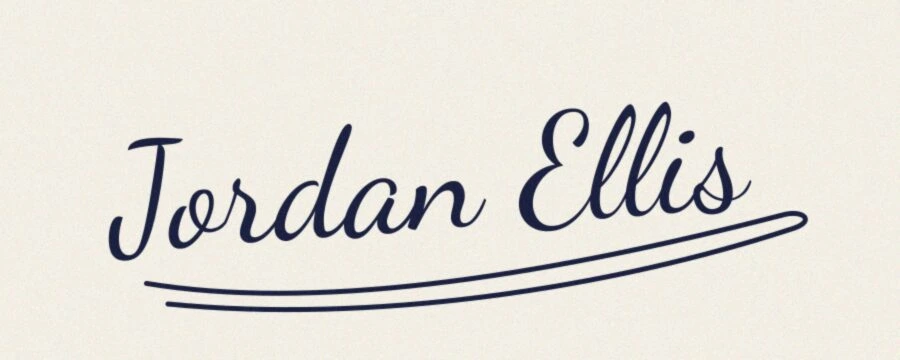
Original raster
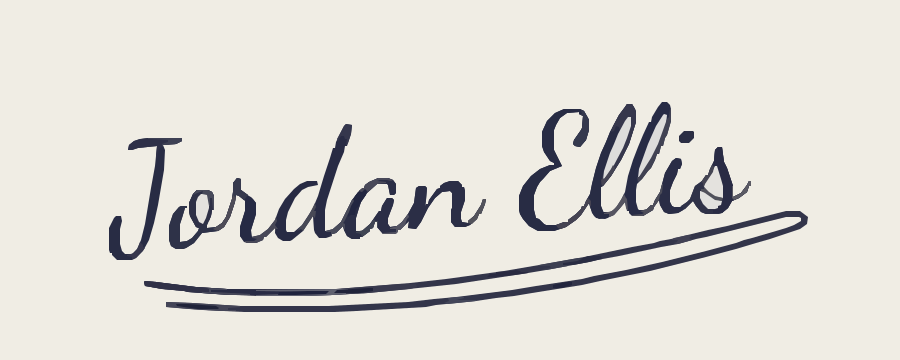
SVGR vector
How to turn a signature into a vector
- Sign on plain paper. Use a dark pen or marker on plain white paper. Sign a few times and pick the one you like.
- Scan or photograph it. Scan at 300–600 dpi in grayscale and save as PNG. With a phone, use even light and shoot straight on.
- Clean it up. Crop tight around the signature and push the levels toward pure black ink on pure white paper.
- Drop it in. Drop the image above; the Signature settings are applied for you. Converting and previewing are free.
- Check and download. Zoom into the preview to check thin strokes and letter endings, then download the SVG or PDF for one credit.
Recommended settings
Why a signature image falls short, and where a vector helps
A scanned signature is a grid of pixels. Enlarge it for a banner or a product and the edges turn soft and jagged; drop it onto a colored page and a white rectangle comes with it.
Turning a signature to vector traces the ink into filled shapes with clean edges, saved as an SVG or a vector PDF. It scales to any size without blurring, which is what printers and engraving shops usually ask for. People use it for:
- Email signatures, letterheads and documents, where it has to sit on the page without a white box
- Merch and branding: a founder's signature on packaging, labels, T-shirts or a shop sign
- Engraving on pens, jewelry, wood, glass or metal
- Keepsakes made from a loved one's handwriting
How to get a clean source image
The trace can only keep what the image shows, so most of the quality comes from the scan.
- Dark pen or a marker such as a Sharpie on plain white paper. Lines, texture and paper grain become marks the tracer tries to keep.
- Even light, shot straight on. Shadows become grey patches and an angle skews the letters.
- Scan if you can: 300–600 dpi, grayscale, saved as PNG rather than JPG.
- Crop tight, then push the levels toward pure black on pure white so the paper disappears and the ink is solid.
Getting a signature without a white box
The Signature and Handwritten types don't offer Transparent background, so when you convert a signature to SVG with them, the paper is traced as a white shape behind the ink. On a white page that doesn't show.
If you need a transparent result, for a colored background, a product mockup or a dark email theme, try the Line Art or Logo type with Transparent background on. Previews are free, so compare that result with the Signature version before you download.
Transparent background removes only the outer background. White areas fully enclosed by ink, such as the inside of a looped letter, stay as white shapes, because the tracer stacks shapes instead of cutting holes. If they show on a colored background, delete them in Inkscape or Illustrator, or use Path > Difference in Inkscape to cut them out of the ink.
Handwriting and calligraphy keepsakes
A handwriting to vector trace is a way to keep someone's hand for a memorial gift: a parent's recipe card, a grandparent's signature on a letter, a line from a birthday card, engraved on jewelry or wood or printed on a mug.
Scan the original rather than photographing it, crop to the words you want, and raise the contrast before tracing. The trace keeps the slant and wobble of the original writing, which is usually the point.
Calligraphy to vector works the same way. Thick-and-thin brush or nib strokes come through as filled shapes, so the contrast between hairlines and heavy strokes is kept, as long as the hairlines are dark enough to read against the paper.
For engraving, ask the shop or check your machine's documentation for the file type it takes. SVGR exports SVG and vector PDF; if someone asks for EPS or AI, open the file in Illustrator or Inkscape and save it in that format.
What a traced signature is not
- Not a font. The trace copies the words you scanned; it won't let you type new ones in that handwriting. For a typeable font, use a font-template service such as Calligraphr, which exports TTF or OTF files.
- Not a single-line path. Each stroke becomes a thin filled shape with two edges. That suits printing, engraving fills and vinyl, but a pen plotter, a Cricut pen or a laser score line will follow the outline of each stroke instead of drawing it once.
- Not an e-signature. An image of a signature, vector or not, can't show who signed or when, so it is not a verifiable electronic signature.
- Not a restoration. Rough paper or a dry pen can leave broken edges that need a little tidying in an editor.
- Curves are traced as many short straight segments. Traced from a small image, they can look slightly angular when enlarged, so start from the largest copy you have.
Frequently asked questions
Can I convert a signature PNG to SVG with a transparent background?
Not with the Signature type, which doesn't offer Transparent background. Try the Line Art or Logo type with it turned on and compare the preview; white areas enclosed by loops may still need deleting in an editor.
Will my signature look the same?
It keeps the shape, slant and stroke weight of what you scanned. The low quality setting is what keeps the edges clean; if a very thin or faint stroke drops out, darken the scan and convert again, or raise Quality a step and accept a softer edge.
Can I turn my handwriting into a font?
Not here. SVGR traces the writing you scanned. A font-template service such as Calligraphr turns filled-in templates into a TTF or OTF font you can type with.
Is a vector signature the same as an e-signature?
No. It's a picture of your signature and can't prove who signed or when. For contracts, use an e-signature service.
Can I use it with a Cricut pen or a pen plotter?
Not as a single line. Strokes are traced as filled outlines, so a pen follows both edges of every stroke. For vinyl or an engraved fill the outline is the right shape; Slice or delete the white shapes inside loops first.
Can I vectorize an old handwritten letter?
Yes, if the writing is legible and stands out from the paper. Scan it at 300–600 dpi, crop to the words you want and raise the contrast; faded ink or stained paper may need extra cleanup.
What file do I get, and what does it cost?
An SVG, or a vector PDF your printer can scale. Converting and previewing are free with no account; downloading either file costs one credit.
Related use cases
Ready to convert?
Converting and previewing are free, with no account needed. Downloading the SVG or PDF uses one credit.